INFO: Software Cheat Sheets
Illustrator CS4/CS5: Selection Tools and Lasso Tool
Cheat Sheet 20110921

Cheat Sheet 20110921
• Selection Tool (V)
• Direct Selection Tool (A)
• Group Selection Tool
• Lasso Tool (Q)
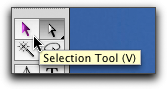
The Selection Tool (V) selects entire groups or objects.
You can:
• Click on something to select it.
• Click and drag a marquis around a group of things to select all of them.
• Hold Shift while clicking to select/deselect individual objects/groups that are not near each other.
• Double-click on a part to isolate your choice (all other groups/objects turn grey and are temporarily locked).
• Keep double-clicking on your choice to further isolate your choice within its own group. (To exit the isolation process – double-click any empty area on your artboard.)
• Move your selection.
NOTE: When double-clicking with the Selection Tool (V) – a grey bar will appear at the top of your canvas to show you how many levels you've gone down while locking and isolating your selection. (Double-clicking narrows your focus – it's like going from a folder to a page to a paragraph to a sentence to a word to a letter.)
The Selection Tool (V) lets you start big and then narrow your choice more and more by double-clicking.
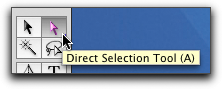
The Direct Selection Tool (A) selects individual objects within a group and individual anchor points to reveal Handles for manipulation.
You can:
• Hold Option to toggle back and forth with the Group Selection Tool.
• Hold Shift while clicking to select/deselect individual parts/objects that are not near each other.
• Move your selection.
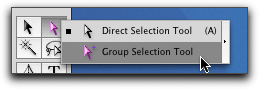
NOTE: In Illustrator, you can have nested groups (a group within a group within a group).
The Group Selection Tool allows you to select anything from a single object up to multiple groups (based on the structure of the overall group).
You can:
• Click on an object.
• Click again on that same object to also select the group that same object belongs to.
• Click yet again to also select the group that your already selected group belongs to – and so on.
• Hold Shift while clicking to select/deselect individual objects/groups that are not near each other.
• Hold Option to toggle back and forth with the Direct Selection Tool (A).
• Move your selection.
Both the Direct Selection Tool (A) and the Group Selection Tool let you start small and add to what you’re selecting.
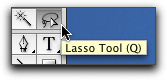
The Lasso Tool (Q) can be used to select individual parts of objects and objects in groups. It is only used for selecting.
The Lasso Tool (Q) allows you to click-hold-and-draw a free-form marquis around objects you want to select.