INFO: Software Cheat Sheets
Illustrator CS4/CS5: Rectangle, Ellipse, Polygon and Star Tool Basics
Cheat Sheet 20110922

Cheat Sheet 20110922
• Rectangle Tool (M)
• Rounded Rectangle Tool
• Ellipse Tool (L)
• Polygon Tool
• Star Tool
• Draw Numerically Using Dialog Boxes
NOTE: You must click and hold your mouse while using modifier keys. Once you release your mouse – your shape is committed to the artboard and modifier keys no longer have any effect.
Hold Option while clicking the Rectangle Tool button and you'll click through your closed path tool choices. Otherwise, just click and hold to see the following tool options (see below):
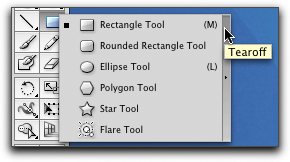
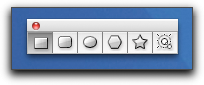
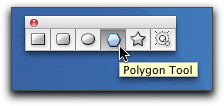
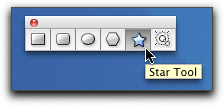
Grab the Tearoff bar on the right and pull it away from the Tools Panel and make a separate floating panel of the closed path tools (see below):
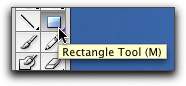
The Rectangle Tool (M) draws squares and rectangles.
You can:
• Click and drag to draw a square or rectangle originating from a corner.
• Click once after drawing to open the dialog box and see what the settings are for what you've just drawn (in case you want to copy it).
• Option lets you draw your square or rectangle originating from the center.
• Shift lets you draw only equilateral squares originating from a corner.
• Shift-Option lets you draw only equilateral squares originating from the center.
• Spacebar allows you to freeze and freely move your shape around while still drawing.
• Once drawn, use the Direct Selection Tool (V) to click on your artboard – then select your shape and Option-drag to make a copy.
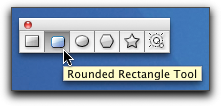
The Rounded Rectangle Tool draws squares and rectangles with rounded corners.
You can:
• Click and drag to draw a rounded square or rounded rectangle originating from a corner.
• Click once after drawing to open the dialog box and see what the settings are for what you've just drawn (in case you want to copy it).
• Option lets you draw your rounded square or rounded rectangle originating from the center.
• Shift lets you draw only rounded equilateral squares originating from a corner.
• Shift-Option lets you draw only rounded equilateral squares originating from the center.
• Click the Up and Down arrow keys to increase and decrease the radius of the rounded corners while drawing.
• Spacebar allows you to freeze and freely move your shape around while still drawing.
• Once drawn, use the Direct Selection Tool (V) to click on your artboard – then select your shape and Option-drag to make a copy.
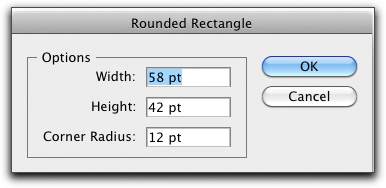
NOTE: The Rounded Rectangle dialog box includes Corner Radius as one of its Options (see below):

The Ellipse Tool (L) draws ellipses and circles.
You can:
• Click and drag to draw an ellipse.
• Click once after drawing to open the dialog box and see what the settings are for what you've just drawn (in case you want to copy it).
• Shift lets you draw a perfect circle.
• Option lets you draw your ellipse originating from the center.
• Shift-Option lets you draw perfect circles originating from the center.
• Spacebar allows you to freeze and freely move your shape around while still drawing.
• Once drawn, use the Direct Selection Tool (V) to click on your artboard – then select your shape and Option-drag to make a copy.
The Polygon Tool draws polygons with all sides having equal lengths.
You can:
• Click and drag to draw a polygon originating from a corner.
• Click once after drawing to open the dialog box and see what the settings are for what you've just drawn (in case you want to copy it).
• Click the Up and Down arrow keys to increase and decrease the number of sides while drawing. (You can use the Polygon Tool to quickly draw an equilateral triangle.)
• Spacebar allows you to freeze and freely move your shape around while still drawing.
• Once drawn, use the Direct Selection Tool (V) to click on your artboard – then select your shape and Option-drag to make a copy.
Polygon dialog box:

The Star Tool draws stars.
You can:
• Click and drag to draw a star originating from a star point.
• Click once after drawing to open the dialog box and see what the settings are for what you've just drawn (in case you want to copy it).
• Click the Up and Down arrow keys to increase and decrease the number of points while drawing.
• Shift will help constrain your star by aligning it to a baseline.
• Option lets you align the shoulders. (It looks different depending on how many points you have – experiment.)
• Command lets you make your star less pointy or really, really pointy. (Again, experiment.)
• Spacebar allows you to freeze and freely move your shape around while still drawing.
• Once drawn, use the Direct Selection Tool (V) to click on your artboard – then select your shape and Option-drag to make a copy.
Star dialog box:

• Radius 1 is the radius of the circle around the tips of the star points.
• Radius 2 is the radius of the circle around the inner core of your star.
• Points is the number of points you have chosen.


Drawing numerically works for all these tools.
NOTE: If you haven’t drawn anything, the info in the dialog box is the default setting. Once you start drawing, the setting will be for the last thing you drew. The only way to return to the default setting in a dialog box is to quit and relaunch Illustrator. (Or, you can write the setting down before you change it and then manually type it back in as needed.)
Using the Rectangle Tool as an example – position your cursor, click and release to open the Rectangle dialog box (see below):
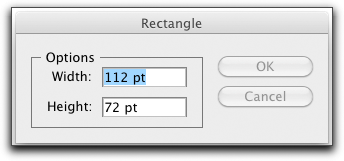
Fill in your desired measurements and click OK. The box will be drawn with the upper left-hand corner being where you had clicked on your artboard (see below):

Option-click to open the Rectangle dialog box and have your measurements drawn with the center of the box being where you had clicked (see below):

NOTE: Illustrator acts as a calculator, in a sense. e.g. Fill in inches and it will convert them into points if that is what you have as your document’s default setting.
SPECIAL TRICK: Hold down the Tilde (~) key when using any of these tools and experiment with the shapes you get.