INFO: Software Cheat Sheets
Illustrator CS4/CS5/CS6: Navigation
Cheat Sheet 20120525

Cheat Sheet 20120525
Zoom In (⌘+)
Zoom Out (⌘-)
Fit Artboard in Window (⌘0) – fits the active artboard to size inside the Illustrator window (double-click a specific artboard in the Artboards Panel to do the same thing – or – double-click on the Hand Tool (H) in the Tool Bar to do the same thing).
Fit All in Window (⌘⌥0) – fits all your artboards to size inside the Illustrator window (use this when you get lost by scrolling around).
Actual Size (⌘1) – displays your artboard at 100% viewing size (this is NOT the size it is going to print, that size depends on other factors – e.g. monitor resolution).
You can also double-click on the Zoom Tool (Z) to make the active artboard centered and at 100% viewing size inside the Illustrator window.
Zoom Tool (Z) – a magnifying glass with a little plus sign inside; allows you to zoom in and out of an area (see images below):


Holding down Option lets you click and zoom out (a little minus sign appears in the center).
Holding down Command-Spacebar also temporarily activates the Zoom Tool so you can use your mouse to click and zoom in and then return to the tool you were using. So, say you're using the Ellipse Tool and you want to see in closer – hold down Command-Spacebar, click and zoom in, then let go of Command-Spacebar and you will return to the Ellipse Tool.
Hand Tool (H) – a fat glove; allows you to grab and move any area of the entire canvas itself – e.g. positioning something towards the center of the screen (see below):
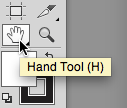
You can click H or hold down the spacebar to get the little hand to appear and grab things (see images below):


The scroll bar thumbs move in direct relation to what the Hand Tool is doing. You can grab and move them with the Hand Tool also.
Artboards Panel (Window - Artboards) – a list of all your artboards the same way your layers are listed. Double-click of any of the listed artboards and Illustrator makes that artboard active and centered on your screen.
Navigator Panel (Window -Navigator) – a panel that previews your entire canvas. The highlighted area is what is currently visible on your screen. Click in this highlighted area and the Hand Tool will move it around on your artboard so you can view different parts of your document.

The slider can also zoom in and out of those areas (see image below):

If you've made your image huge on your screen, you can move the red rectangle around in the Navigator Panel and it will move your canvas around on your screen in relation to what's inside the red rectangle (see images below):

