INFO: Software Cheat Sheets
Illustrator CS4: Line, Arc, Spiral, Rectangular and Polar Grid Tool Basics
Cheat Sheet 20110916

Cheat Sheet 20110916
Think architecture and sculpture – everything you make in Illustrator is an object that you can manipulate.
• Line Segment Tool
• Arc Tool
• Spiral Tool
• Rectangular Grid Tool
• Polar Grid Tool
• Draw Numerically Using Dialog Boxes
NOTE: You must click and hold your mouse while using modifier keys. Once you release your mouse – your shape is committed to the artboard and modifier keys no longer have any effect.
Hold Option while clicking the Line Segment Tool (\) button and you'll click through the Line Tool choices. Otherwise, just click and hold to see the following tool options:
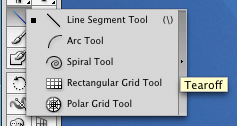
Grab the Tearoff bar on the right and pull it away from the Tools Panel and make a separate floating panel of the Line Tools (see below):
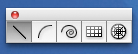

The Line Segment Tool (\) draws a straight line between two points.
You can:
• Click and drag to draw a straight line.
• Click once after drawing to open the dialog box and see what the settings are for what you've just drawn (in case you want to copy it).
• Shift makes your line snap every 45 degrees (45º) as you’re drawing. (Be certain to release your mouse before releasing Shift.)
• Option lets you to draw from the center out.
• Shift-Option lets you draw from the center out and make it snap every 45 degrees (45º) as you’re drawing.
• Spacebar allows you to freeze and freely move the line around while still drawing.
Can’t see it?
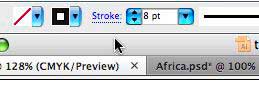
• Change the Stroke (thickness and color choice) in the top Control Panel (see below):
• Or use the Eyedropper (I) to pick up the attributes of another line on any visible layer.
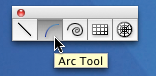
The Arc Tool draws a quarter of some sort of ellipse (a regular oval shape) or circle.
You can:
• Click and drag to draw a segment.
• Click once after drawing to open the dialog box and see what the settings are for what you've just drawn (in case you want to copy it).
• Shift makes it a quarter of a circle while drawing.
• Option lets you draw from the center out.
• Shift-Option lets you to draw from the center out and make it a quarter of a circle.
• Spacebar allows you to freeze and freely move the arc around while still drawing.
• Press C to close off the quarter ellipse/circle with a ninety-degree angle (see below). Press C again to make it open back up (see below):

• Click F or X to make the arc flip while drawing.
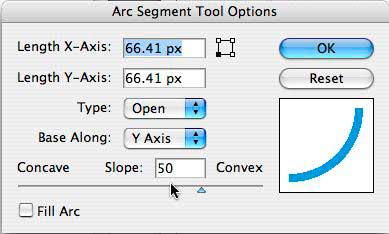
• The Up and Down arrow keys change the amount of Slope in the arc while drawing. If you want to return to the default Slope setting – click once on your artboard to open the Arc Segment Tool Options dialog box and change the Slope to 50 (see below):
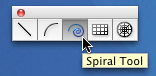
The Spiral Tool draws spirals.
You can:
• Click and drag to make a spiral.
• Click once after drawing to open the dialog box and see what the settings are for what you've just drawn (in case you want to copy it).
• Spacebar allows you to freeze and freely move the spiral around while still drawing.
• The Up and Down arrow keys increase and decrease the number of segments.
• Command lets you change the decay (how tight it spirals).
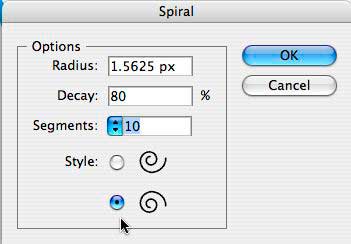
• Another way to change direction is to click on your artboard to open the Spiral dialog box and then choose your Style (see below):

The Rectangular Grid Tool draws rectangular grids (that are called Groups of Paths in the Layers Panel).
You can:
• Click and drag to draw a grid.
• Click once after drawing to open the dialog box and see what the settings are for what you've just drawn (in case you want to copy it).
• Shift will constrain it to be a perfect square.
• Option lets you to draw from the center out.
• Spacebar allows you to freeze and freely move the grid around while still drawing.
• The Up and Down arrow keys increase and decrease the number of rows.
• The Right and Left arrow keys increase and decrease the number of columns.
• Click V to make the rows and columns skew to the top.
• Click F to make the rows and columns skew to the bottom.
• Click C to make the rows and columns skew to the right.
• Click X to make the rows and columns skew to the left.
(To end or change the skewing – click once on your artboard and this will open the Rectangular Grid Tool Options dialog box. Change the skew back to zero percent (0%) for both top and bottom.)
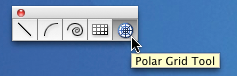
Polar Grid Tool draws elliptical/circular grids.
You can:
• Click and drag to draw a polar grid.
• Click once after drawing to open the dialog box and see what the settings are for what you've just drawn (in case you want to copy it).
• Option allows you to draw from the center out.
• The Up and Down arrow keys increase and decrease the number of rings.
• The Right and Left arrow keys increase and decrease the number of dividers.
• Spacebar allows you to freeze and freely move the grid around while still drawing.
• Click V to make the dividers fold in to the right.
• Click F to make the dividers fold in to the left.
• Click C to add and make the concentric circles skew outwards.
• Click X to reduce and make the concentric circles skew inwards.
Drawing numerically works for all the above tools.
NOTE: If you haven’t drawn anything, the info in the dialog box is the default setting. Once you start drawing, the setting will be for the last thing you drew. The only way to return to the default setting in a dialog box is to quit and relaunch Illustrator. (Or, you can write the setting down before you change it and then manually type it back in as needed.)
Using the Rectangle Tool as an example – position your cursor, click and release to open the Rectangle dialog box (see below):
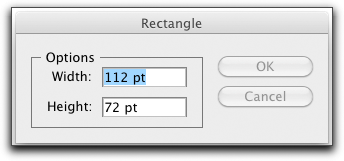
Fill in your desired measurements and click OK. The box will be drawn with the upper left-hand corner being where you had clicked on your artboard (see below):

Option-click to open the Rectangle dialog box and have your measurements drawn with the center of the box being where you had clicked (see below):

NOTE: Illustrator acts as a calculator, in a sense. Ex: Fill in inches and it will convert them into points if that is what you have as your document’s default setting.
SPECIAL TRICK: Hold down the Tilde (~) key when using any of these tools and experiment with the shapes you get.