INFO: Software Cheat Sheets
Illustrator CS5: Making Compound Paths
Cheat Sheet 20110926

Cheat Sheet 20110926
Compound Paths create effects and also save time.
The following example is using a Compound Path to cut out holes in a circle for viewing a background color.
Our background color is blue (see image below):

Draw a circle using the Ellipse Tool (L) (see image below):

Press D to make the circle have the Default Fill and Stroke – which is a white Fill and a 1 point black Stroke (see image below):

Draw a second circle inside the first circle – again using the Ellipse Tool (L) and press D again (see image below):

Our two circles (see image below):

Using the Selection Tool (V) – Shift-select both circles (see image below):
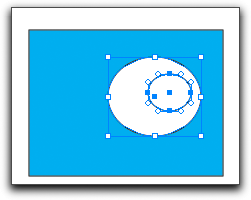
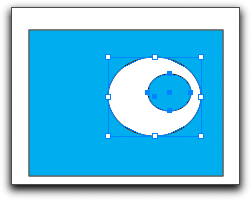
Go to Object - Compound Path - Make (⌘8) and the two Paths of the two circles will become one Path (see images below):

If you wanted, you could have made five circles (see image below):

Shift-selected all of them (see image below):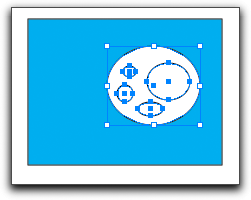
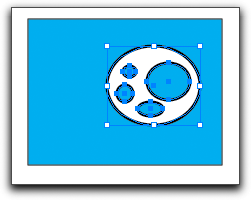
Hit Command-8 (⌘8), and then gotten this (see image below):

Since all the Paths were combined and it is now one Compound Path – you can do things like select your Path and change the stroke from being 1 point to being 3 points and, in one simple action, get this (see images below):