INFO: Software Cheat Sheets
Illustrator CS4/CS5: Pencil Tool, Smooth Tool and Path Eraser Tool Basics
Cheat Sheet 20110923

Cheat Sheet 20110923
• Pencil Tool (N)
• Smooth Tool
• Path Eraser Tool
The Pencil Tool (N) draws the lines and Illustrator draws the Anchor Points.
Using a mouse to draw with the Pencil Tool can be frustrating. A pen tablet is less frustrating.
Hold Option while clicking the Pencil Tools button and you'll click through the Pencil Tool choices. Otherwise, just click and hold to see the following tool options:

Grab the Tearoff bar on the right and pull it away from the Tools Panel to make a separate floating panel of the Pencil Tools (see below):


You can just start drawing (see below):

Pencil Tool with x means you can keep drawing to modify a selected Path or start a new Path. (The x disappears when you start modifying or drawing.)
Don’t want to modify so easily? Open the Pencil Tool Options dialog box by double-clicking on the Pencil Tool in the Tools Panel and un-check Keep selected (see below):

Then, if you do want to modify a Path, hold Command to temporarily access the Selection Tool (V). Click to select your Path, release Command, and then modify (see images below):

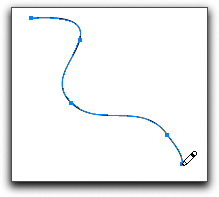
When the Pencil Tool with o appears, if you stop drawing your Path will be closed automatically even if you're not that close to the starting point (see below):


The Smooth Tool lets you go back and slightly modify a selected Path by drawing over it. (The Path doesn’t have to have been created by the Pencil Tool for the Smooth Tool to work.)
You can:
• Access the Smooth Tool by clicking on it in the Tools Panel or in a floating panel (if you've made one).
• Hold Command to temporarily access the Selection Tool (V). Click to select your Path, release Command, and then smooth away.
• Hold Option to toggle between the Pencil Tool and the Smooth Tool.
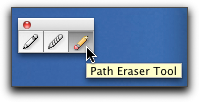
The Path Eraser Tool lets you erase parts of any selected Path. (The Path doesn’t have to have been created by the Pencil Tool for the Path Eraser Tool to work.)
Access the Path Eraser Tool by clicking on it in the Tools Panel or in a floating panel (if you've made one).
Hold Command to temporarily access the Selection Tool (V). Click to select your Path, release Command, and then start erasing.